Before Starting Work
Recommended Workflow
To avoid unnecessary work and excessive revisions from the supervisor, follow these recommendations when working on a shot:
Statuses
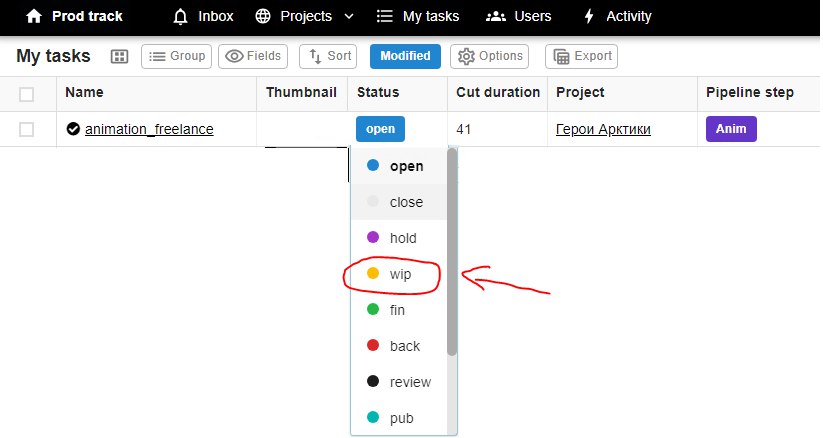
Before you start working on a scene, you should open the My Tasks tab, where all your tasks will be displayed, and change the task status from open to wip. This means you've started working on the scene. You don't need to change the status again during the process.
Script and Dialogue Sheet
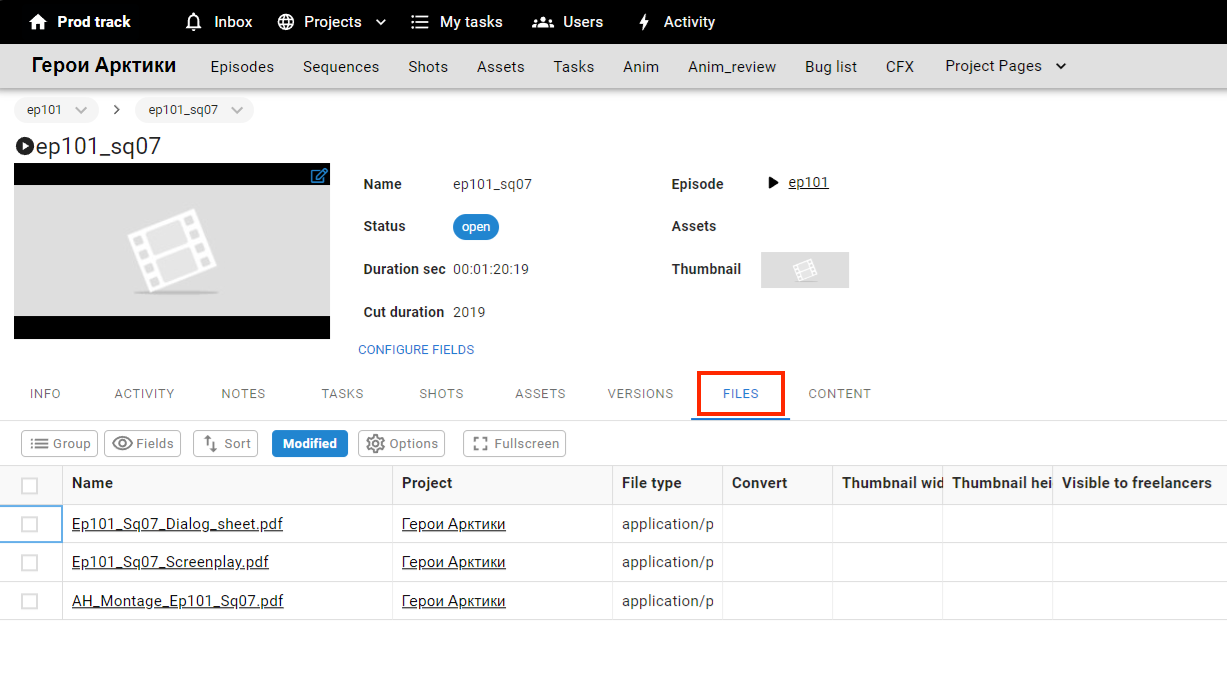
Start your work on the shot by reading the script and the dialogue sheet for the episode. You can always find these documents at the following path:
-
Open Prodtrack.
-
In the
Projectstab, select your project. -
In the
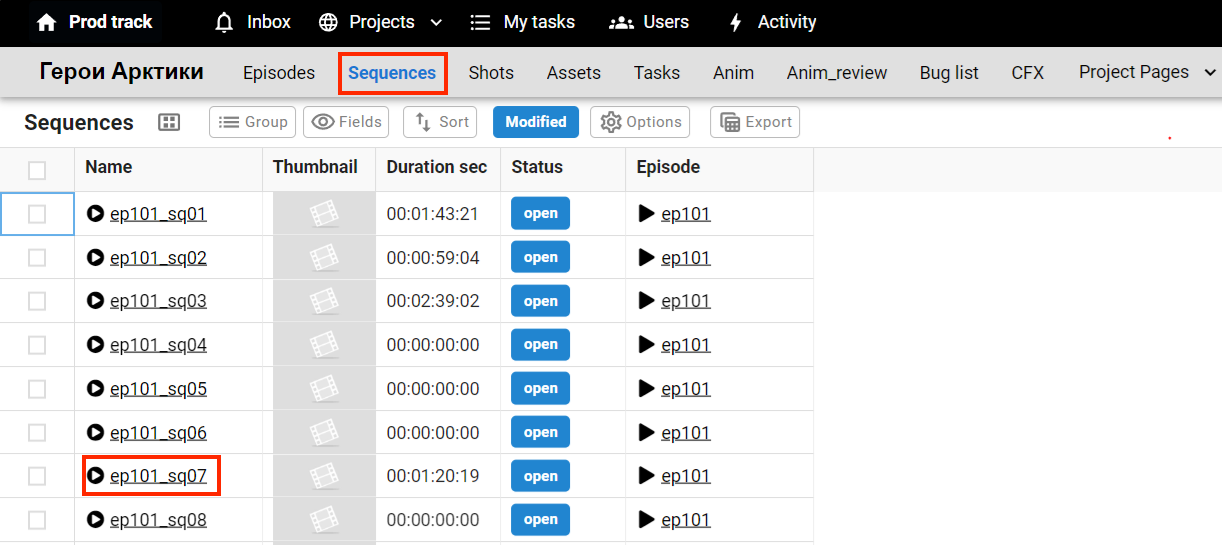
Sequencesection, open the required sequence. -
In the
Filestab, you will find all the necessary text files for the episode (script, dialogue sheet, and editing sheet).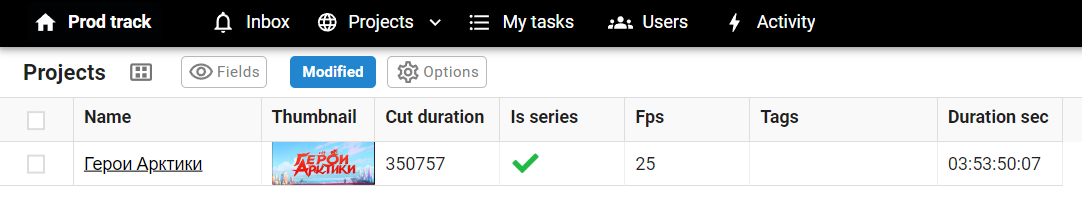
2D and 3D Animatics
After reading the script and understanding what happens in the episode, it's time to figure out how exactly it happens!
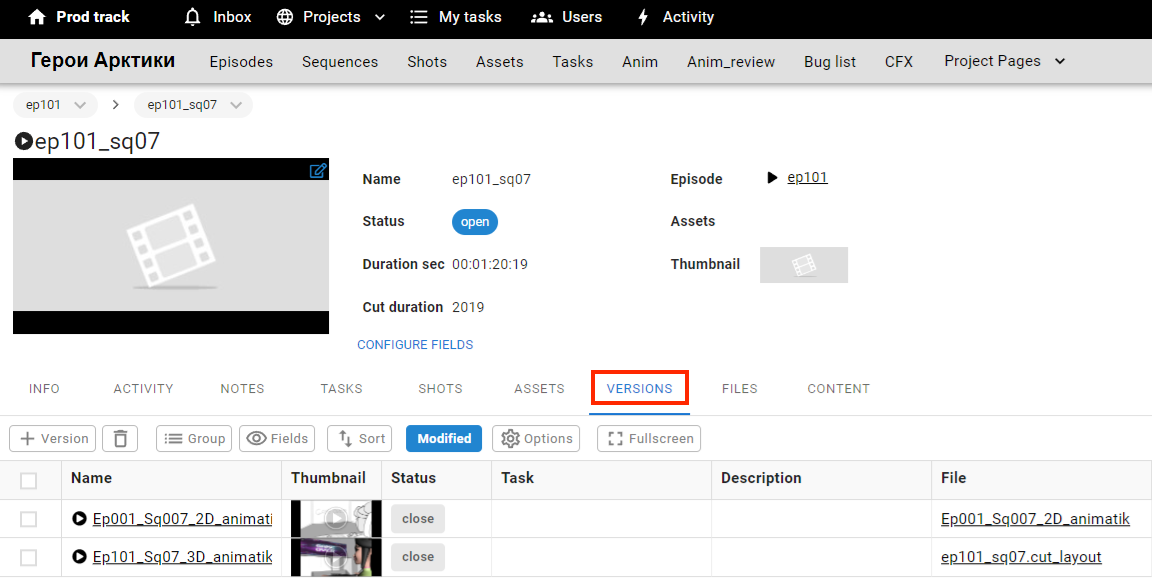
- 2D animatics are typically the best way to understand the director’s intent and the emotions they want to convey.
- 3D animatics show how the scene should be composed visually.
Animatics are stored in the Versions tab of the episode.
Video Reference
All our video references are recorded with professional actors under the careful guidance of the director, so don't hesitate to trust them! Video references are mainly used to help you make the body mechanics in your shot more accurate. Below is an example of how to correctly work with a reference.
Sometimes, the action in the video reference may differ from what happens in the 3D layout of your shot. In such cases, it's best to contact your coordinator and clarify what you should follow when animating. There may also be situations where no video reference is available for your shot (this usually happens because the body mechanics are too complex for actors). In that case, rely on the animatics.
You can find the video reference and 3D layout for the shot by following these steps:
-
Open Prodtrack.
-
Select the
My Taskstab with your assigned tasks. -
In the link field, click on the number of the shot you need.
-
In the
Versionstab, find the3D layoutandvideo references(there may be one or several).