After Work Completion
Uploading Files to FTP
Once the status of the playblast you uploaded changes to Approved (which means the shot is accepted), you need to upload the .ma file with the full name epXXX_sqXX_shXXX for the series or sqXXX_shXXX for the feature film to the FTP.
To upload Maya files, you have a dedicated work folder, and the same folder exists on the FTP server.
Using Studio Desktop, this folder is fully synchronized both ways — you can delete or add files locally to this folder, and they will be uploaded to the FTP server.
Please do not store any other files in the work folder; it is only for .ma files! Also, do not create subfolders for episodes or scenes.
To monitor your folder on FTP, Studio Desktop provides a dedicated area called the Work Area, which displays the contents of the work folder.
By clicking the Open Folder in Explorer button, you can open the local work folder in the standard Windows Explorer. You can add files to this folder, and Studio Desktop will track changes and activate synchronization.
This feature allows you to upload files using any preferred method, such as Total Commander.
You can drag and drop a file into the Work Area, and it will be uploaded to the FTP.

You can also drag and drop multiple files at once.

By clicking the Open Folder in Explorer button, you can open the local work folder in the standard Windows Explorer. You can add files to this folder, and Studio Desktop will track changes and activate synchronization.
This feature allows you to upload files using any preferred method, such as Total Commander.

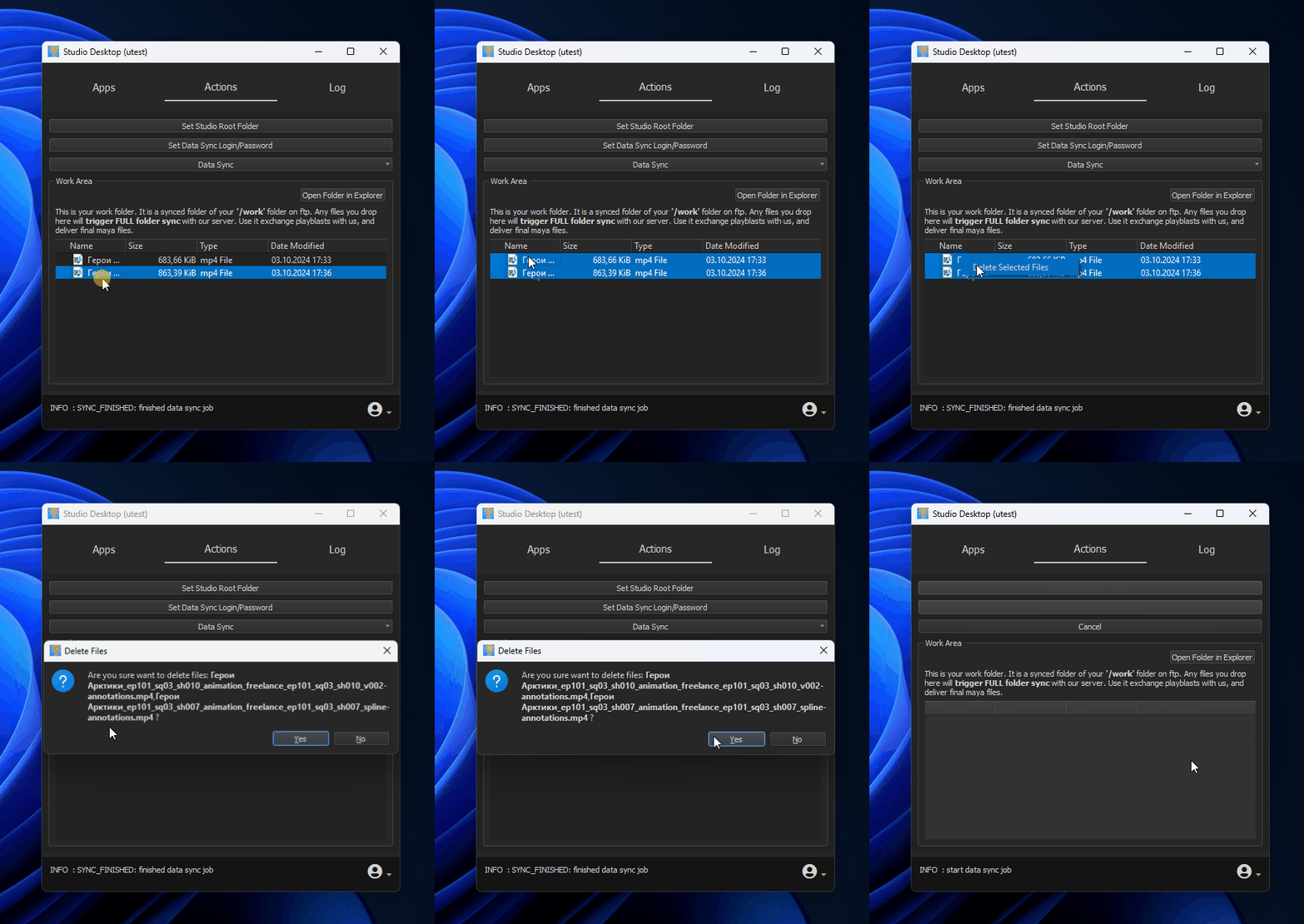
If you're unsure whether your files have been synchronized, for instance, if you turned off Studio Desktop, you can manually upload them by clicking the Data Sync => Data Sync Upload button. You can always delete files using the context menu or any other method from the work folder.
Note that this will also delete the files on the FTP!