Prodtrack
Prodtrack is our tool designed to enhance interaction between animators and the animation studio. Prodtrack helps you track all assigned tasks, access necessary resources for scene work, and upload your playblasts for review.
Getting Started
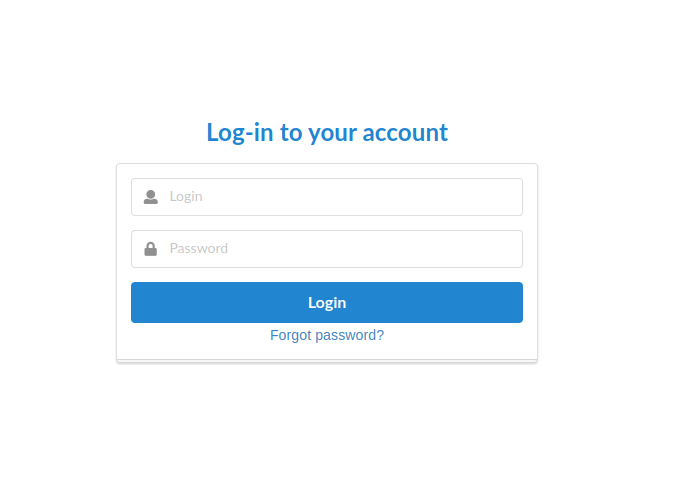
- First, visit the website using the login and password provided by your coordinator. We recommend using the latest version of Google Chrome.
- Open the
My Taskstab. It displays all shots assigned to you.

- You can see the due date for completing the shot and submitting your
.ma filein theEnd datefield.

How to Customize the My Tasks Page?
You can customize the My Tasks page to suit your workflow.
Field Display Settings
To enable or disable the display of specific columns in My Tasks, use the Fields menu.

Available fields and their meanings:
- Id – Displays the internal task number in Prodtrack (rarely needed for work).
- Name – Displays the task name (all freelance tasks should follow the format Animation_freelance).
- Thumbnail – A useful column that provides quick access to the latest playblast you uploaded for this shot.
Loading all playblasts may take some time.
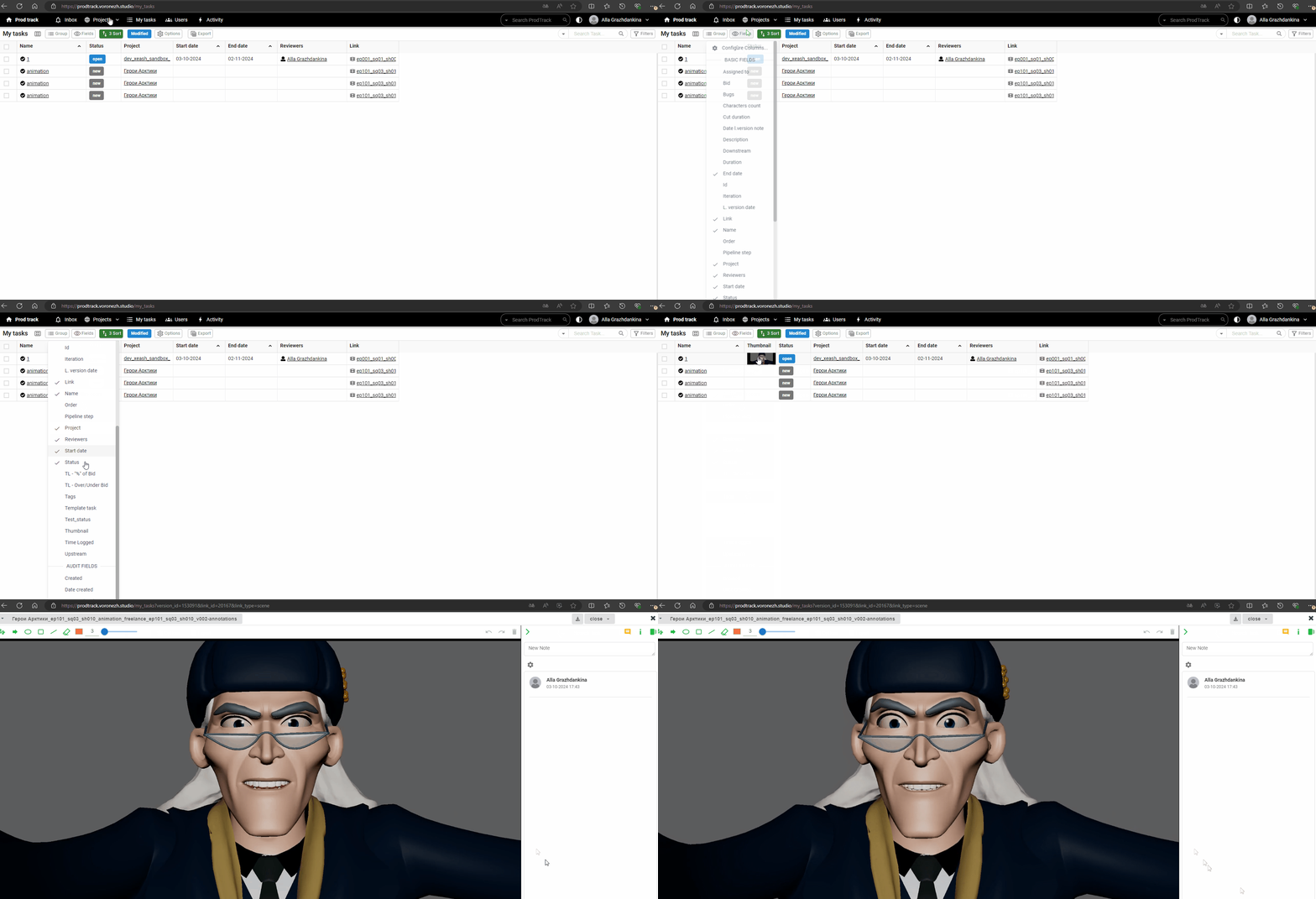
- Status – Displays the current status of your task. (If your task has a different status than WIP before starting work, contact your coordinator.)
- Cut duration – The number of frames in your shot.
- Characters count – The number of characters in your shot. (This value is calculated automatically and may be incorrect if the same rig is used for multiple characters in a shot, as they will be counted as one.)
- Assigned to – Shows who the task is assigned to (you).
- Reviewers – The person providing feedback on your work.
- Start date – The start date of the shot.
- End date – The due date for completing the shot. Always monitor this column!
- Date l.version note – Shows the date of the last comment on the most recent playblast you uploaded.
Enable this column to see when a review is added to your last playblast based on the date update.
- L.version date – The date you uploaded the latest playblast for this shot.
- Project – The project number to which the task is linked.
- Duration – This column is under development.
- Link – Displays the full shot name and quick access to the shot’s info page.
- Link ID – The unique shot number in Prodtrack (not needed for animator work).
- Link type – Shows what the task is linked to (tasks can be tied to scenes or assets).
- Pipeline step – Displays the production step associated with your task (for animators, this is always Anim).
- Description – Contains additional information about your shot (animation notes, payment status, etc.).
- Template task – This column is under development.
You can reorder columns by dragging them with the left mouse button.
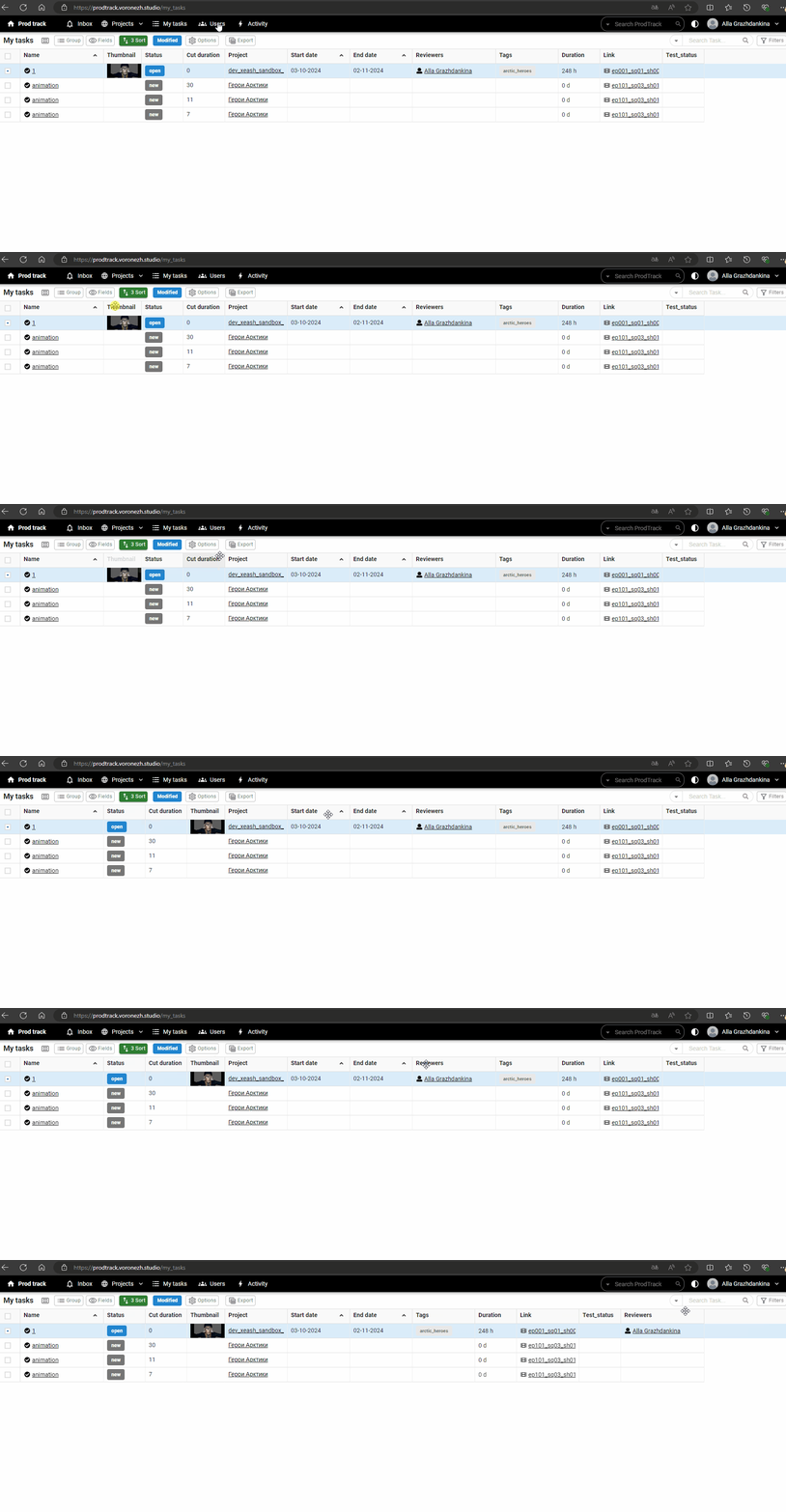
After making changes, always save your settings. Otherwise, the My Tasks page will revert to its default layout upon refresh.

Recommended field display settings:

Task Grouping Settings
You can configure task grouping in a way that suits your workflow.

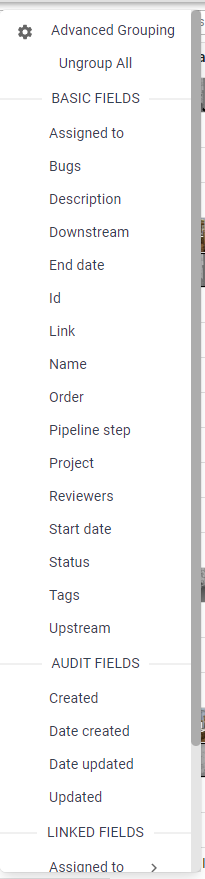
Grouping options you may find useful:
-
Status – Group by task status.
-
End date – Group by task due date.
-
Project – Group by project, which is useful if you're working on multiple projects simultaneously.
tipThe order in which you apply grouping matters. For example, if you want to group by
StatusandProject, apply theProjectgrouping first, followed byStatusfor better clarity.noteUse grouping sparingly; sorting will often be more useful.
Working with Filters
Using filters, you can show or hide different tasks.

Select a field to filter by (e.g., task status):
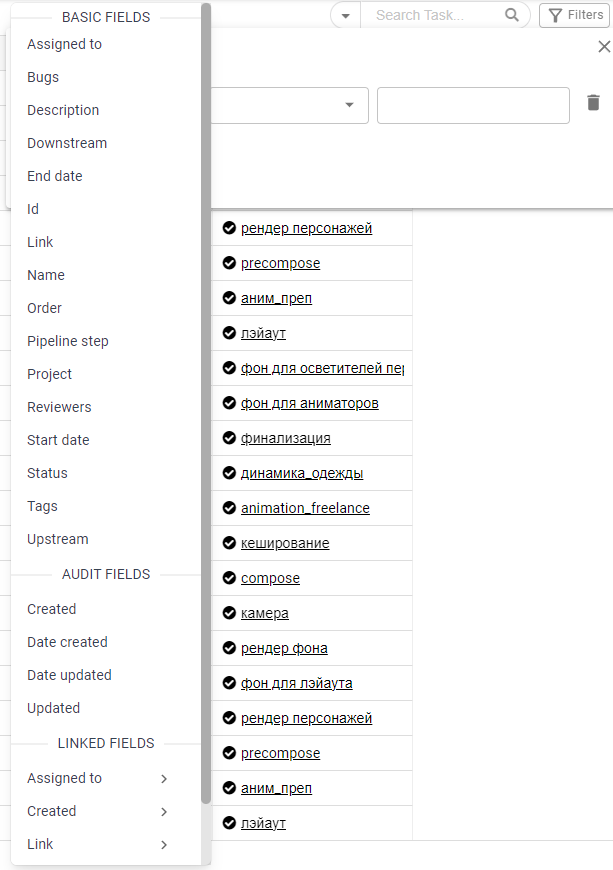
Specify the condition for the filter:
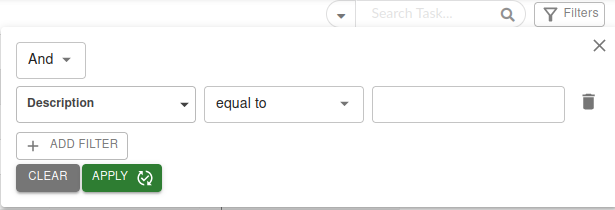
Useful conditions:
- Equal to – Shows tasks that exactly match the selected condition.
- Not equal to – Hides tasks with the selected condition.
- Contains – For text fields (like Description), enter Paid to see paid shots, or waiting for an invoice to see shots where we’re awaiting your invoice.
In the final field, set the condition and click Apply to apply the filter. Filter order also matters.
Task Sorting
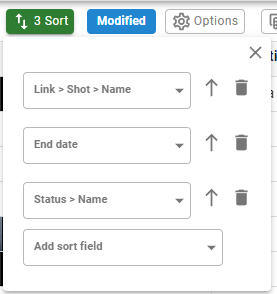
Use sorting to change the order of task display.

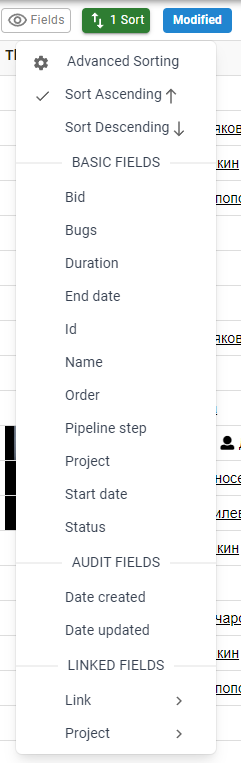
Applied grouping may interfere with sorting.
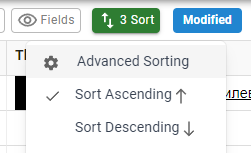
You can use multiple sorting conditions to achieve combined sorting and grouping. For example, sorting by Status and End date will bring shots that are in progress and due soon to the top.
Exporting Data to Excel
You can export tasks to Excel using the Export button. You can also set Filters beforehand to export only the tasks you need.
