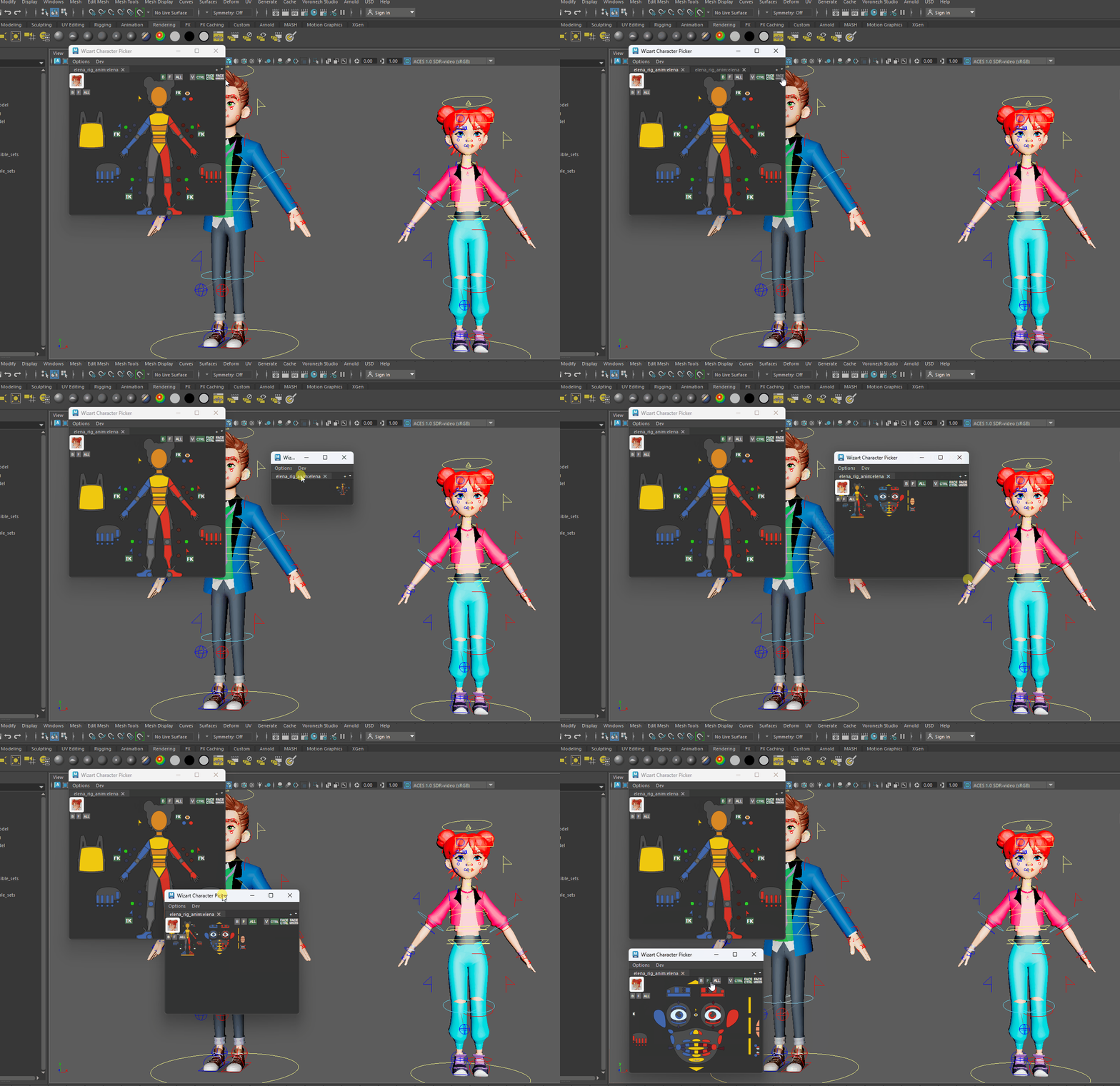
Picker
Picker - tool for fast picking/selection and acess to controls for character rigs we making at Voronezh Studio.
Think of it like "control panel" for controls arragned in comfortable way, organizing tens of controls, we have on each character.
Now we have unique picker for each character, and it works only you have .picker file. Location of this file depends on folders configuration on the project.
How to Show Picker
- Look into menu
Voronezh Studio => Animation => Picker. At the appeared window, push "+" button and select from character list the asset you need.
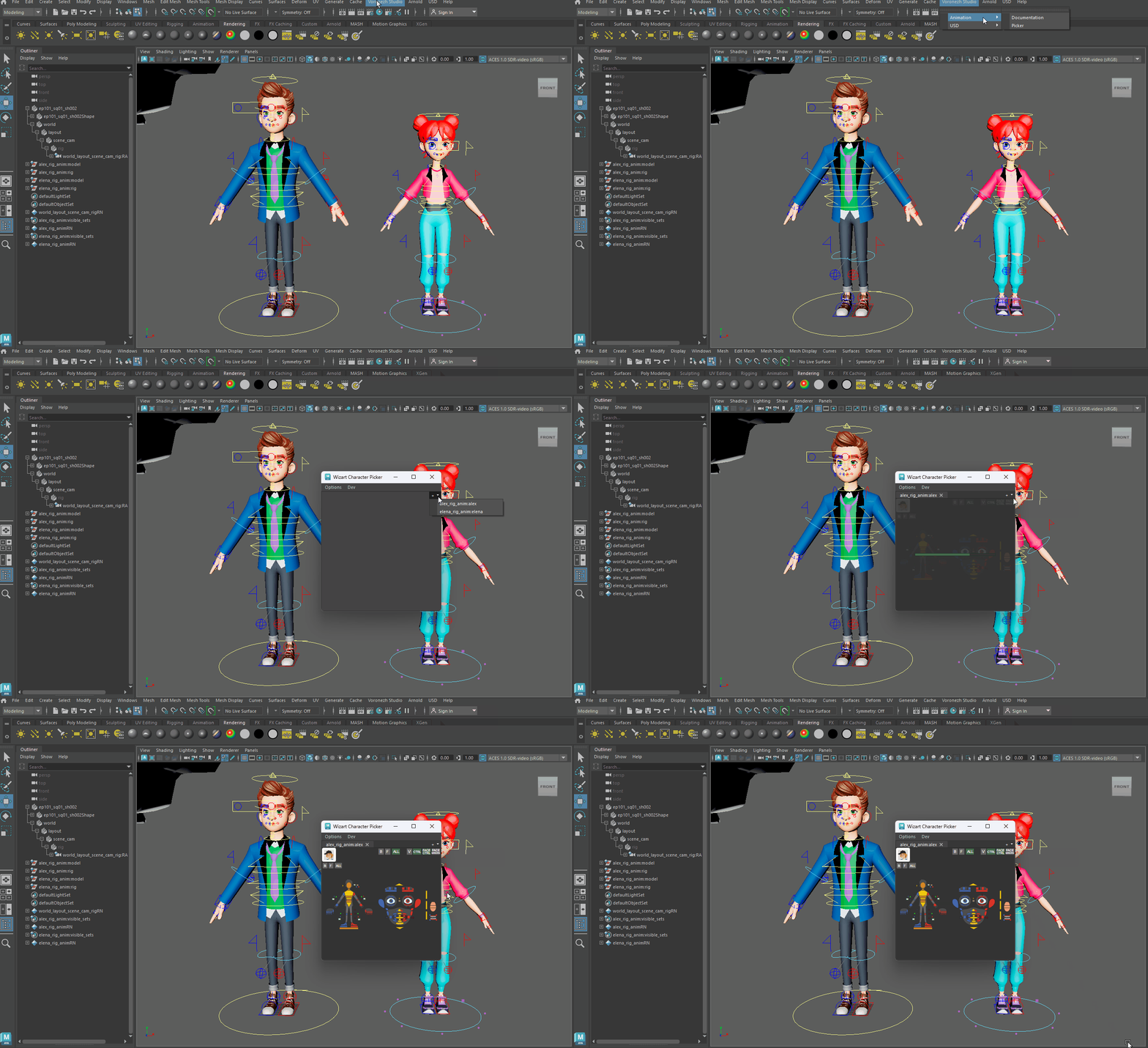
- RMB click on character control and select in context menu
Show Picker. This will show picker for selected character and highlight clicked control in picker.

Navigation
Use Alt+MMB for pan, Alt+RMB or mouse wheel for zoom. Using F button you can focus on selected control.

Selecting controls
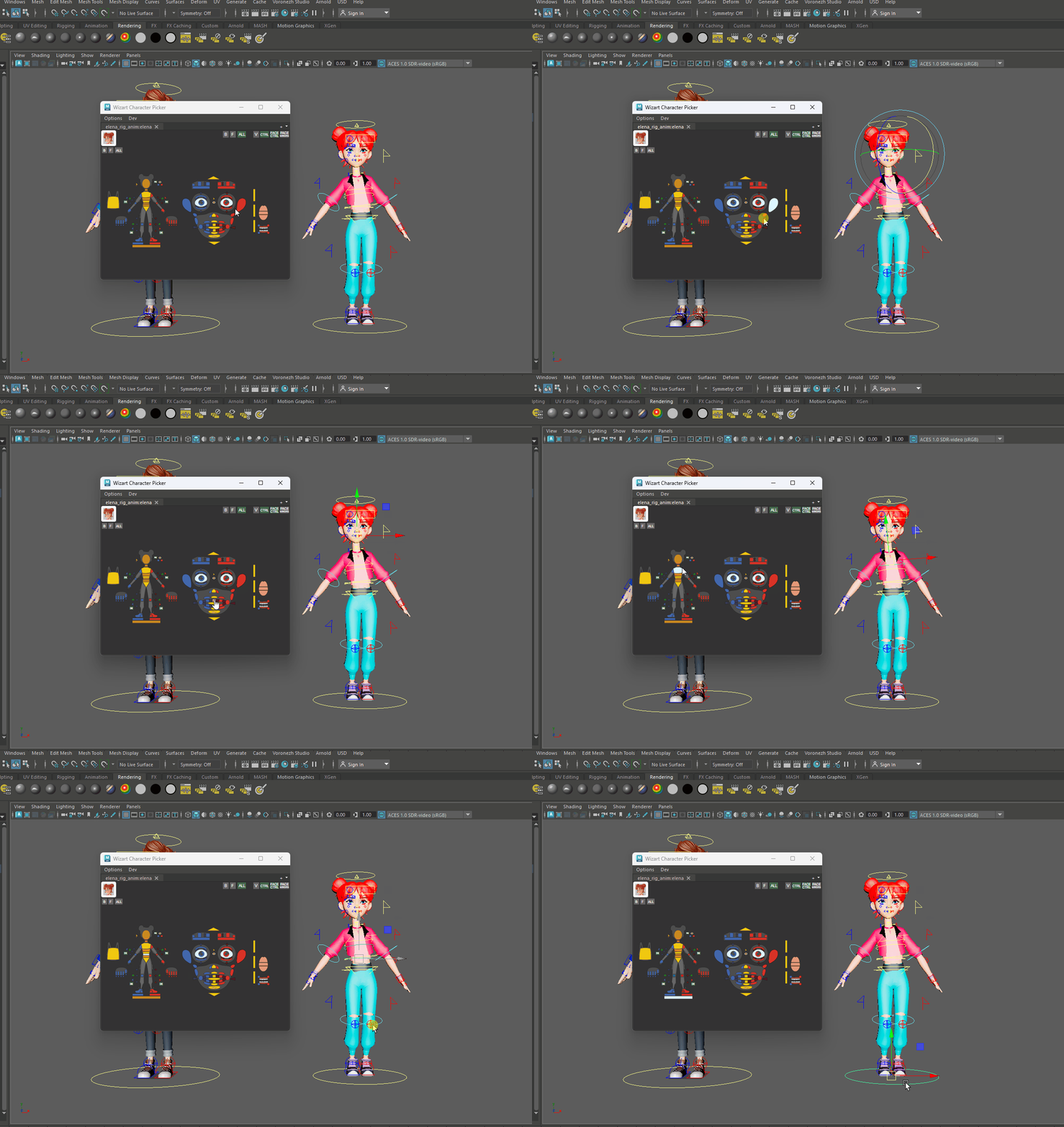
Select/pick controls in picker will select corresponding controls in Maya. Notice that, this selection behaviour is bidirectional i.e. if you selection something in maya that will trigger highlight in picker.
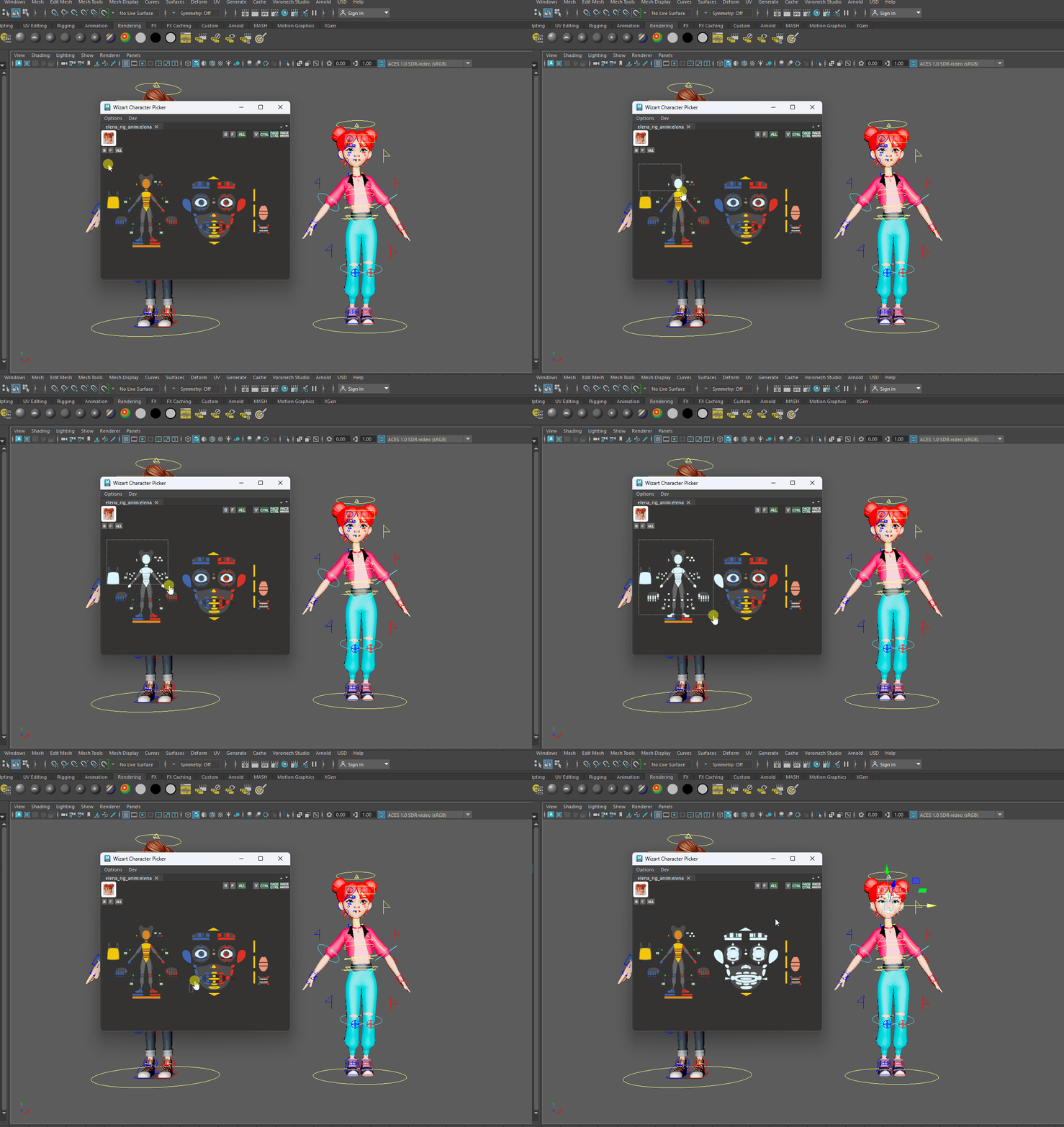
You can also do selection rectangular marquee in picker, to select several controls at once.
Utilities
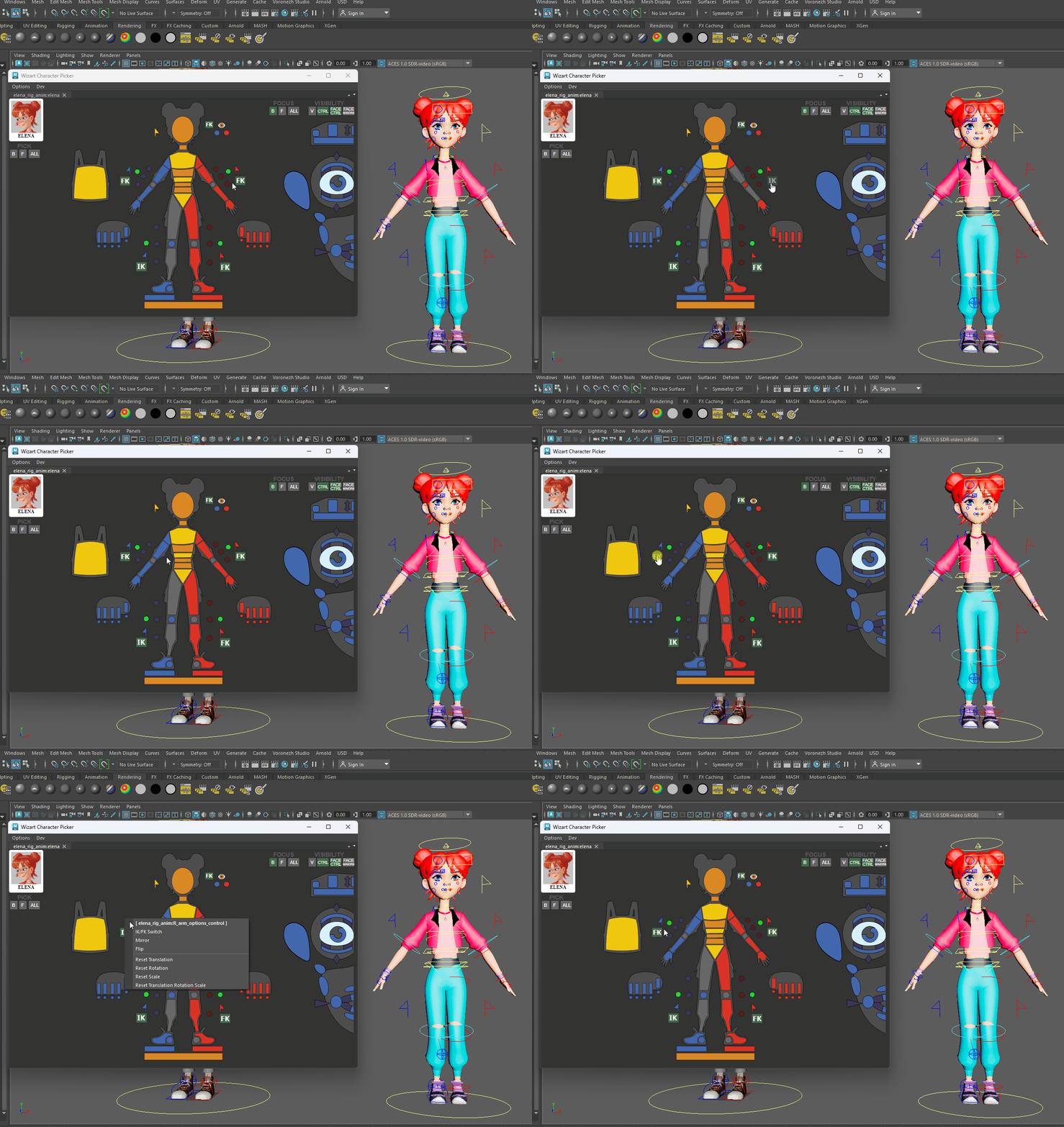
If you push green buttons with labels IK or FK, placed near parts of rig control, you can seamlessly switch ik/fk modes. Also you can do this using RMB context menu on control in picker.
Focus Groups
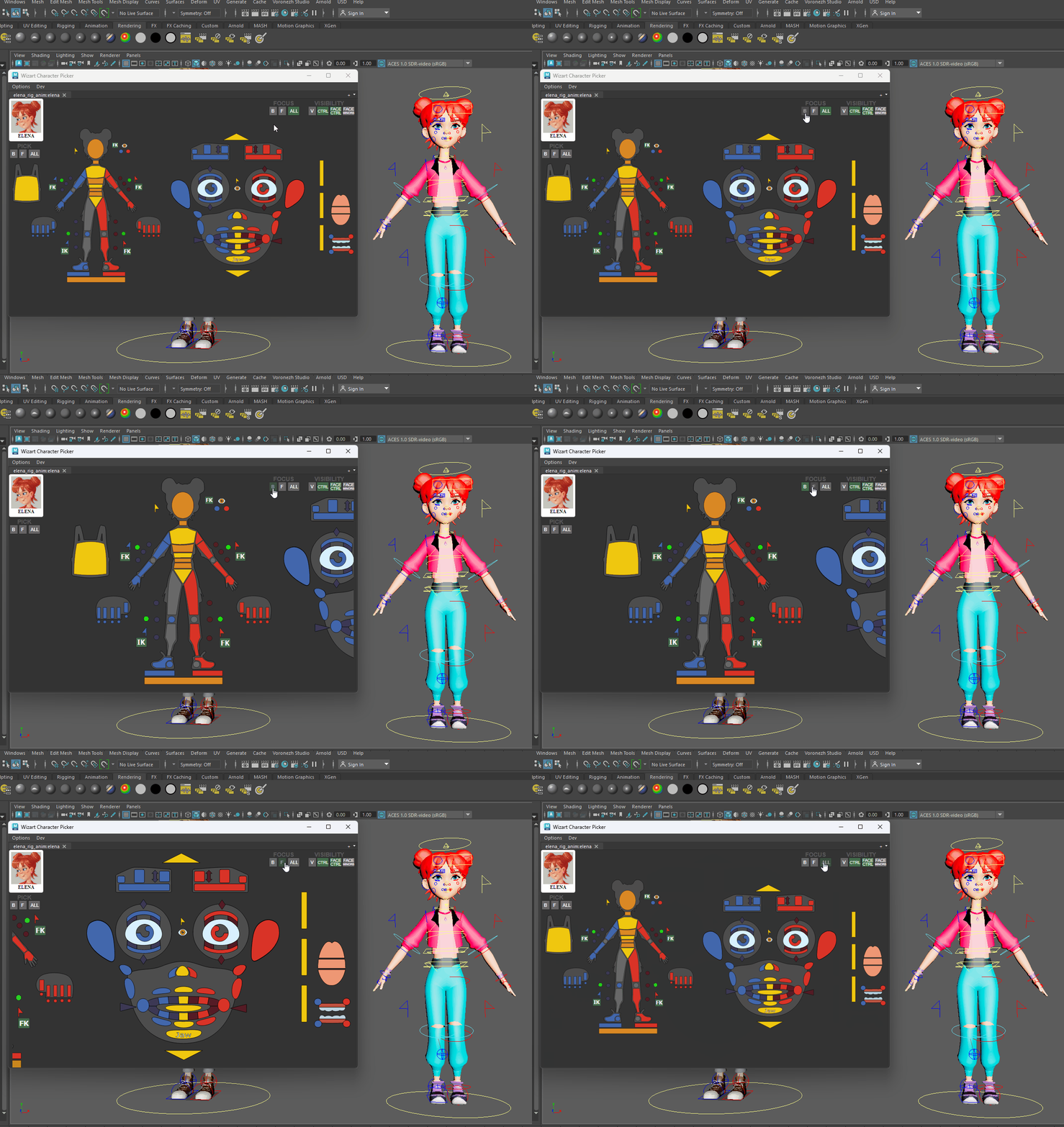
You can use buttons for fast focus on groups body (B), face (F) or focus ALL controls.
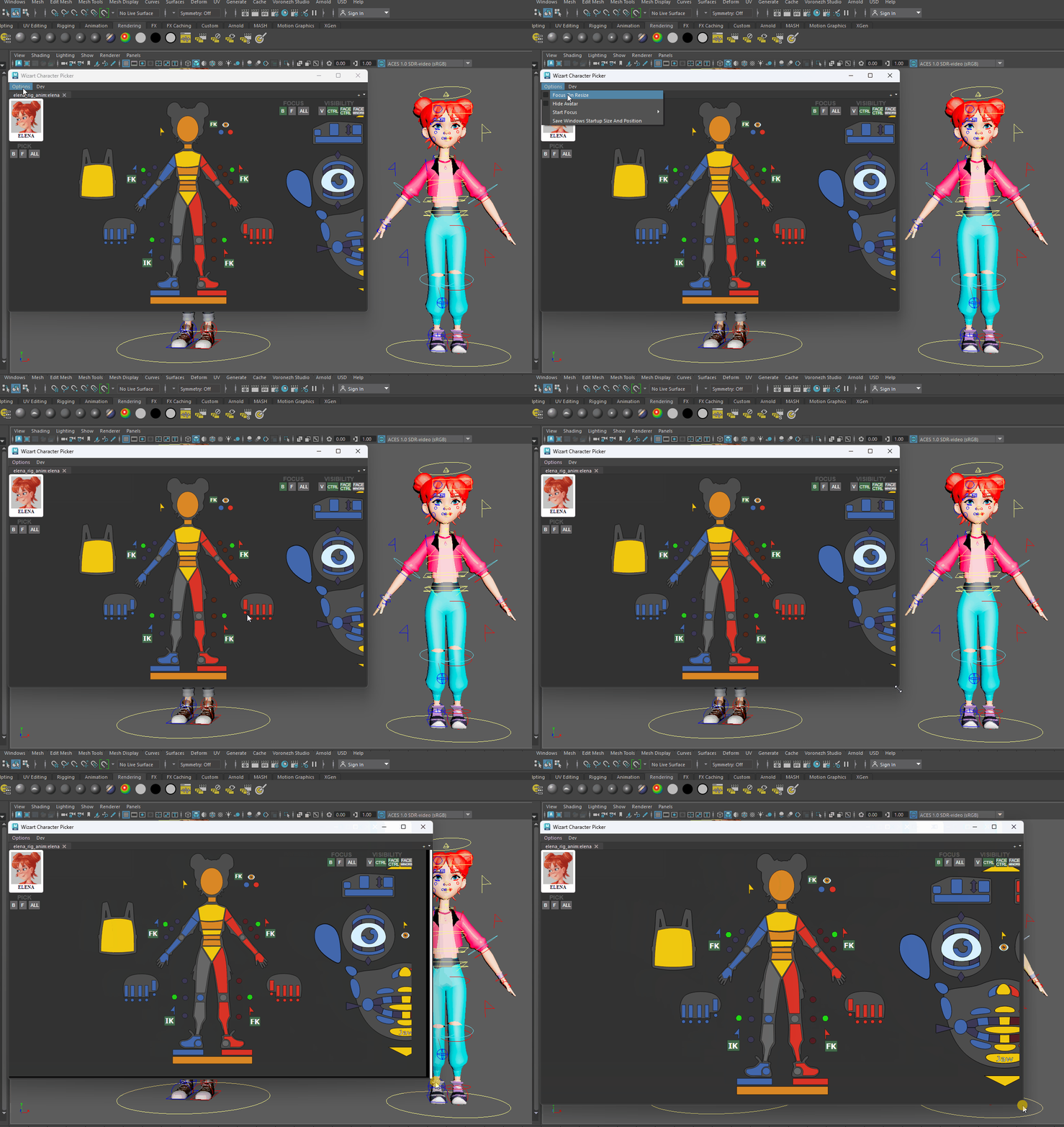
You can make picker to keep focus on group when you resizing window, if you use option Focus On Resize.
Tab Management
If you move tab outside the picker window while holding Shift you can detach tab into new window.

This way you can also attach tab to existing picker window.

If you have tabs for several characters, when you you select different character in Maya, picker will auto switch tab to show character you working on.
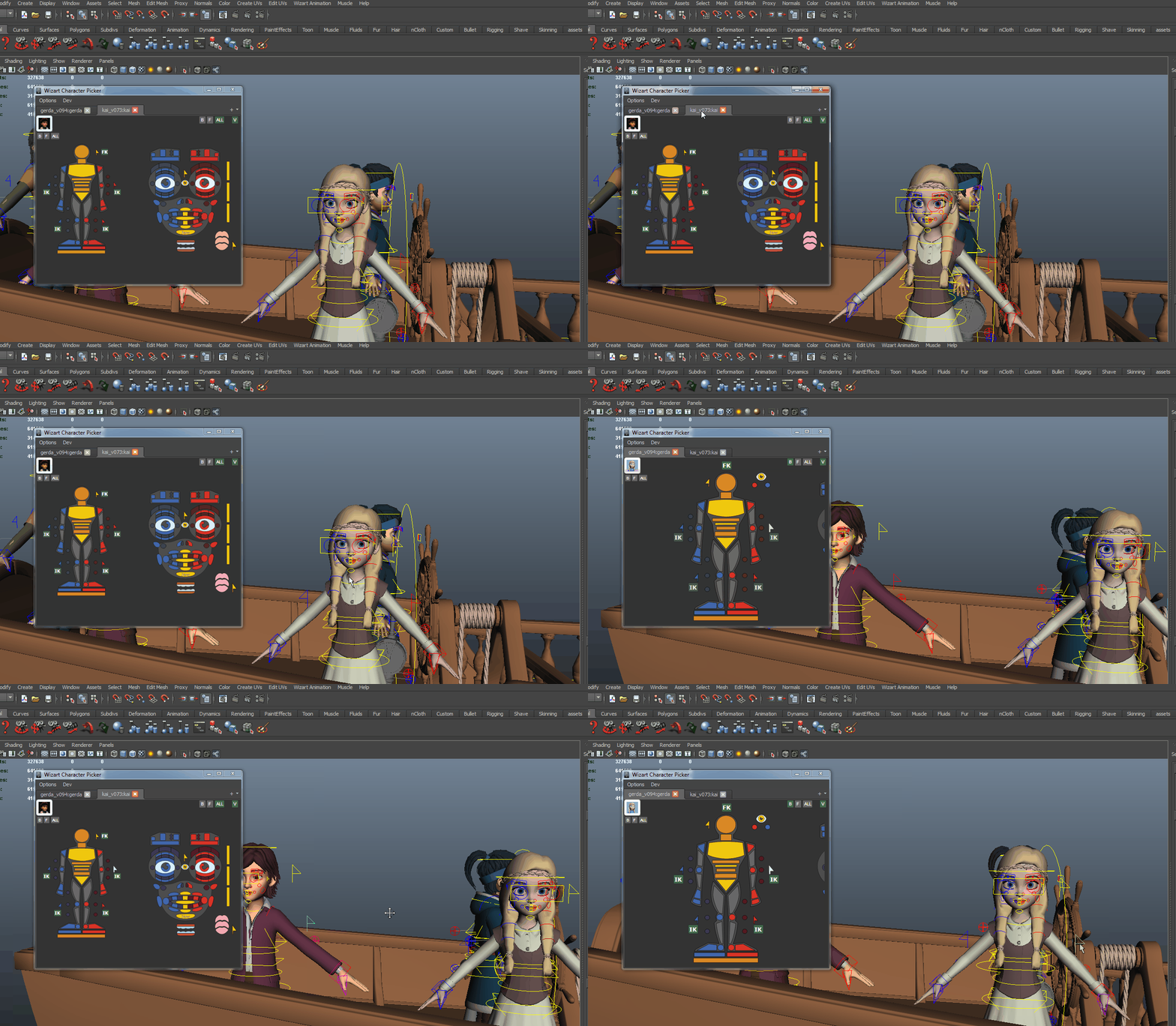
You can open several tabs on one character, e.g. you can work with one window showing face controls and another show body controls.