Working with Wref Context Manager
- When starting a new scene, you may want to pin specific setup versions for the scene to prevent newer versions from affecting other scenes you’re working on.
- If you encounter a technical issue with a setup, you can locally update the rig version for a specific scene without affecting others.
We store a special Wref context in the Maya scene, used in both Maya and USD formats, to map the Wref path to the physical path on your disk. To simplify version management, use the Voronezh Studio → USD → Wref Context Manager tool.
In the Wref Context Manager window, you can pin specific Wref paths to lock current versions or switch to another version. You can also unpin or update paths to the latest version.

Pinning Versions
- The
Versioncolumn shows the current file version used in the scene. - If the version is pinned, the icon in the
Pincolumn will appear as:
- If the version is not pinned, the icon in the
Pincolumn will look like:
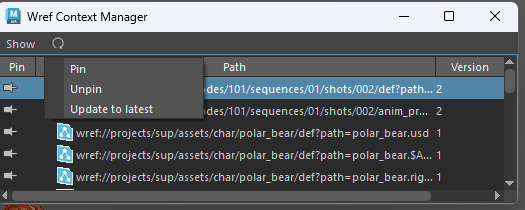
If a specific version is indicated in the Wref path and a pin is set, the pin value takes precedence.
- You can lock a version by entering the desired value in the
Versioncolumn. - Alternatively, select one or more rows, right-click, and choose
Pinfrom the context menu to pin the selected versions.
Upgrade to the latest version / Unpin
- Select one or more lines,
- Right-click to open the context menu and select
Unpin
If no version is specified in the Wref path and no pin is set, the file will automatically update to the latest version.
Updating to the Latest Version with Pinning
You can use the context menu option Update to latest to update a path to the most recent version and pin it automatically.
Data Display Setting
File Type Filter
In the Show menu, you can filter paths by file type:
USD files(.usd, .usda, .usdc),Maya files(.mb, .ma),- Other Files.
Refreshing the Content
Use the Refresh button  to update the
 Wref Context Manager window after reloading a scene.
Displaying Physical Path
You can view the physical file path based on the current context settings in the Resolved column.
By default, this column is hidden. To show it, right-click on the table header and select Show/Hide Resolved.
Adding Characters or Items to a Scene
If you find that a character or item is missing from your scene, contact support. The required asset will be added to the scene's anim_prep and made available for you to download. Once the resources are downloaded, reopen your scene, and the asset will automatically appear.
Do not manually add assets to the scene, even if you have the required file on your computer. This will break the file paths, and the scene will not function properly in the studio.